The Subtle Art of Debouncing and Throttling in JavaScript
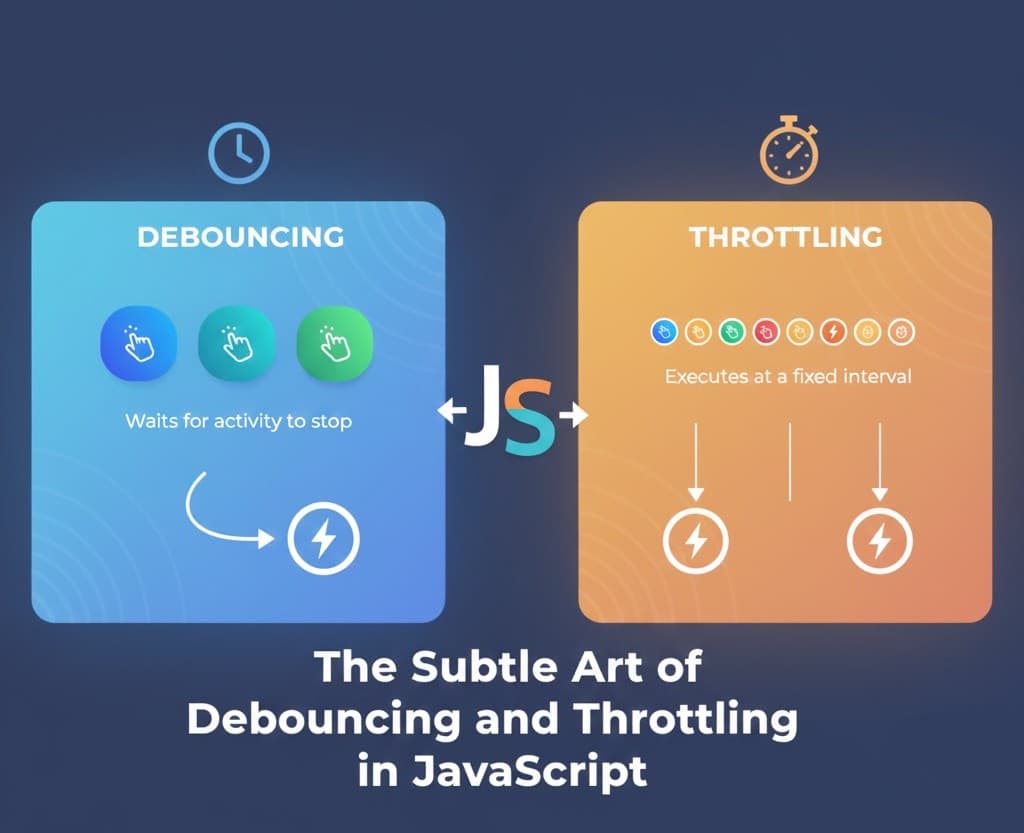
Performance bottlenecks often stem from aggressively firing functions, especially during user input or scrolling. This tutorial provides clear, practical examples demonstrating the mechanisms of debouncing and throttling. We analyze real-world use cases, such as optimizing search bar input and scroll event handling, to show you how to maintain smooth UI responsiveness and conserve resources by limiting function execution rate.
The introduction of React Server Components (RSC) and the subsequent architecture in Next.js 13+ is perhaps the biggest shift in React development since the introduction of Hooks. This article aims to clarify what these components are, how they interact, and why they are essential for modern web performance.
In the world of frontend development, application performance isn't solely defined by the initial page loading speed—it is equally, if not more, about interaction speed and responsiveness. When a user interacts with a web page by typing, scrolling, or resizing the window, the browser fires corresponding events.
If we attach expensive functions (like updating the DOM or making API calls) directly to these frequent events, the function can fire hundreds of times per second. This phenomenon, known as Event Overload, quickly floods the JavaScript Call Stack, causing the UI to freeze, leading to "jank," and severely degrading the user experience.
To combat this inefficiency and maintain smooth responsiveness, developers use rate-limiting techniques. This article introduces two essential patterns for controlling function execution frequency: Debouncing and Throttling.
🛡️ Debouncing in Detail: Optimizing Event Handlers
Debouncing is a core performance optimization technique in JavaScript used to control how often a function is executed, particularly when that function is attached to a rapidly firing event.
In simple terms, debouncing limits how often a function executes. It essentially waits for a pause in events before running the function.
A Simple Explanation
Imagine you are typing in a search box:
- Each keystroke fires an event immediately.
- You don’t want to hit the database/API on every single keypress (that would be highly inefficient).
- Instead, you wait until the user stops typing for
500msbefore firing the request.
That precise delay logic is what we call debouncing.
"use client";

import { useEffect, useState } from "react";

function DebouncingAndThrottlingPage() {
  const [defaultText, setDefaultText] = useState("");
  const [debouncedText, setDebouncedText] = useState("");
  const [debounceProducts, setDebounceProducts] = useState([]);

  // Debounce Logic
  useEffect(() => {
    const timerId = setTimeout(() => {
      setDebouncedText(defaultText);
    }, 1000);

    return () => clearTimeout(timerId);
  }, [defaultText]);

  // Fetch products when debouncedText changes
  useEffect(() => {
    if (!debouncedText.trim()) {
      setDebounceProducts([]);
      return;
    }

    const fetchProducts = async () => {
      try {
        const res = await fetch(
          `https://dummyjson.com/products/search?q=${debouncedText}`
        );
        const data = await res.json();
        setDebounceProducts(data.products);
      } catch (err) {
        console.error("Error fetching products:", err);
      }
    };

    fetchProducts();
  }, [debouncedText]);

  return (
    <main>
      <div className="grid grid-cols-2 gap-x-5 gap-y-5 md:max-h-[80vh]">

        {/* DEBOUNCING INPUT SECTION */}
        <section className="md:min-h-[60vh] md:max-h-[80vh] col-span-2 lg:col-span-1 text-center rounded-2xl border-gray-700 border-t-2 shadow-gray-700 shadow-sm p-2">
          <h1 className="text-2xl lg:text-3xl font-bold py-1 text-blue-500">
            Debouncing
          </h1>
          <div className="flex flex-col w-full mt-4 gap-y-4">
            <p>Search Product to See Debouncing</p>
            <input
              type="text"
              onChange={(e) => setDefaultText(e.target.value)}
              className="self-center bg-neutral-400 font-semibold rounded-lg h-8 min-w-[85vw] md:min-w-[25vw] text-black px-3"
            />
            <p className="self-start font-bold text-xl">
              Default Text: {defaultText}
            </p>
            <p className="self-start font-bold text-xl">
              Debounced Text: {debouncedText}
            </p>
          </div>
        </section>

        {/* PRODUCTS DISPLAY SECTION */}
        <section className="md:min-h-[60vh] col-span-2 lg:col-span-1 text-center rounded-2xl border-gray-700 border-t-2 shadow-gray-700 shadow-sm p-2 flex flex-col">
          <h2 className="font-bold text-2xl">Products</h2>
          <div className="flex flex-wrap items-center justify-center gap-x-8 gap-y-3 mt-2 overflow-y-scroll custom-scrollbar">
            {debounceProducts.length > 0 ? (
              debounceProducts.map((product) => (
                <div
                  key={product.id}
                  className="border p-2 rounded-md shadow-md w-64 md:h-28 text-left bg-white text-black flex items-start md:flex-col md:justify-center justify-between gap-x-3"
                >
                  <p className="font-semibold">{product.title}</p>
                  <p className="text-green-600 font-bold mt-1">
                    ₹ {product.price}
                  </p>
                </div>
              ))
            ) : (
              <p className="italic text-gray-500">No products found.</p>
            )}
          </div>
        </section>

      </div>
    </main>
  );
}

export default DebouncingAndThrottlingPage;
🧠 Step-by-Step Breakdown
Let's assume you type the word: "laptop" into the search box. Here is exactly how the execution flows:

You type: "l"

defaultText is updated to "l".

The useEffect block triggers.

A setTimeout is established to update debouncedText to "l" after 1 second.

Crucial point: You do not wait 1 second. You immediately type the next letter.

You type: "a"

defaultText becomes "la".

The useEffect triggers again.

The cleanup function runs, canceling (clearTimeout) the previous timeout for "l".

A fresh timeout is set for "la".

You type: "p"

defaultText becomes "lap".

The previous timeout for "la" is canceled.

A fresh timeout is set for "lap".

You finally stop typing after "laptop"

defaultText is now "laptop".

A final timeout is set for 1 second.

Because you have stopped typing, the 1-second timer finally completes without being canceled.

The Result: debouncedText safely becomes "laptop", which then triggers the second useEffect responsible for making the actual API call.

⏱️ Throttling in Detail: Controlling Execution Rates
Throttling is a technique used to limit the number of times a function can be executed over a specific period of time.

It ensures that a function is called at most once in a specified time interval, regardless of how many times the triggering event occurs. With throttling, we control the steady flow of execution even under continuous triggers.

💡 Real-Life Analogy:

Debounce: You are having a conversation, and the other person waits until you have completely finished speaking before they reply.

Throttle: The other person replies to you exactly once every 10 seconds, no matter how much you are talking in between.

Simple Explanation
Suppose a user scrolls a webpage, firing 100 scroll events in a single second. With throttling, we strictly restrict the execution of the scroll handler to run only once every 1000ms (or any fixed time interval you define).

Common Use-Cases for Throttling:

Scroll event listeners (e.g., checking scroll position for animations).

Window resize handlers.

Tracking continuous mouse movements.

Any network-intensive tasks firing on a loop.

JavaScript
"use client";

import { useEffect, useRef, useState } from "react";

function DebouncingAndThrottlingPage() {
  // Throttle states
  const [clickCounter, setClickCounter] = useState(0);
  const [throttleCounter, setThrottleCounter] = useState(0);
  const lastExecutedRef = useRef(0);
  const [cooldown, setCooldown] = useState(null);

  // Throttle logic
  const updateCounter = () => {
    setClickCounter((prev) => prev + 1);
    setCooldown(5); // Start visual cooldown timer at 5 seconds

    const now = Date.now();
    // Only execute if 5 seconds have passed since the last execution
    if (now - lastExecutedRef.current > 5000) {
      setThrottleCounter((prev) => prev + 1);
      lastExecutedRef.current = now;
    }
  };

  // Cooldown timer logic for UI
  useEffect(() => {
    if (cooldown === null) return;

    const intervalId = setInterval(() => {
      setCooldown((prev) => {
        if (prev === null || prev <= 1) {
          clearInterval(intervalId);
          return null;
        }
        return prev - 1;
      });
    }, 1000);

    return () => clearInterval(intervalId);
  }, [cooldown]);

  return (
    <main className="space-y-4">
      {/* THROTTLING SECTION */}
      <div className="md:min-h-[60vh] rounded-2xl border-gray-700 border-t-2 shadow-gray-700 shadow-sm p-2 space-y-4">
        <h1 className="text-center text-3xl font-bold py-1 text-blue-500">
          Throttling
        </h1>

        <section className="bg-gray-950 py-8 rounded-2xl px-2 md:px-4">
          <div className="flex gap-x-3 mb-6">
            <span className="text-xl font-extrabold text-white">#1</span>
            <span className="text-lg text-gray-300 italic">
              Clicking the button increases the <span className="font-semibold text-blue-400">Click Counter</span> immediately, but the <span className="font-semibold text-green-400">Throttle Counter</span> updates at most <span className="underline">once every 5 seconds</span>, regardless of how fast you click.
            </span>
          </div>

          <article className="md:px-6 font-sans flex flex-col gap-y-3">
            <span className="bg-gray-900 text-gray-300 font-medium max-w-max px-3 py-1 rounded-lg">
              <b>Leading Edge Throttling:</b> The first call executes instantly, but subsequent calls are ignored for 'n' seconds.
            </span>
          </article>

          {/* INTERACTIVE THROTTLE DASHBOARD */}
          <div className="bg-gray-900 my-12 pl-5 grid md:grid-cols-5 md:items-center justify-center gap-x-8 py-4 rounded-2xl">
            <div className="col-span-1 flex items-center justify-center">
              <button
                className="bg-blue-500 text-white text-sm md:text-[15px] font-semibold px-4 py-2 rounded-xl cursor-pointer hover:bg-blue-600 transition"
                onClick={updateCounter}
              >
                Trigger Action
              </button>
            </div>

            <div className="col-span-1 flex items-center justify-center text-white">
              <h1 className="font-bold text-lg">Clicks: {clickCounter}</h1>
            </div>

            <div className="col-span-1 flex items-center justify-center h-8">
              {cooldown !== null && (
                <p className="text-yellow-400 text-lg text-center animate-pulse font-mono">
                  Wait: {cooldown}s
                </p>
              )}
            </div>

            <div className="col-span-1 flex items-center justify-center text-green-400">
              <h1 className="font-bold text-lg text-center">
                Throttled Executions: {throttleCounter}
              </h1>
            </div>

            <div className="col-span-1 flex items-center justify-center">
              <button
                className="bg-red-500/20 text-red-500 hover:bg-red-500 hover:text-white border border-red-500 text-sm md:text-[15px] font-semibold px-4 py-2 rounded-xl cursor-pointer transition"
                onClick={() => {
                  setClickCounter(0);
                  setThrottleCounter(0);
                  lastExecutedRef.current = 0;
                  setCooldown(null);
                }}
              >
                Reset
              </button>
            </div>
          </div>
        </section>
      </div>
    </main>
  );
}

export default DebouncingAndThrottlingPage;